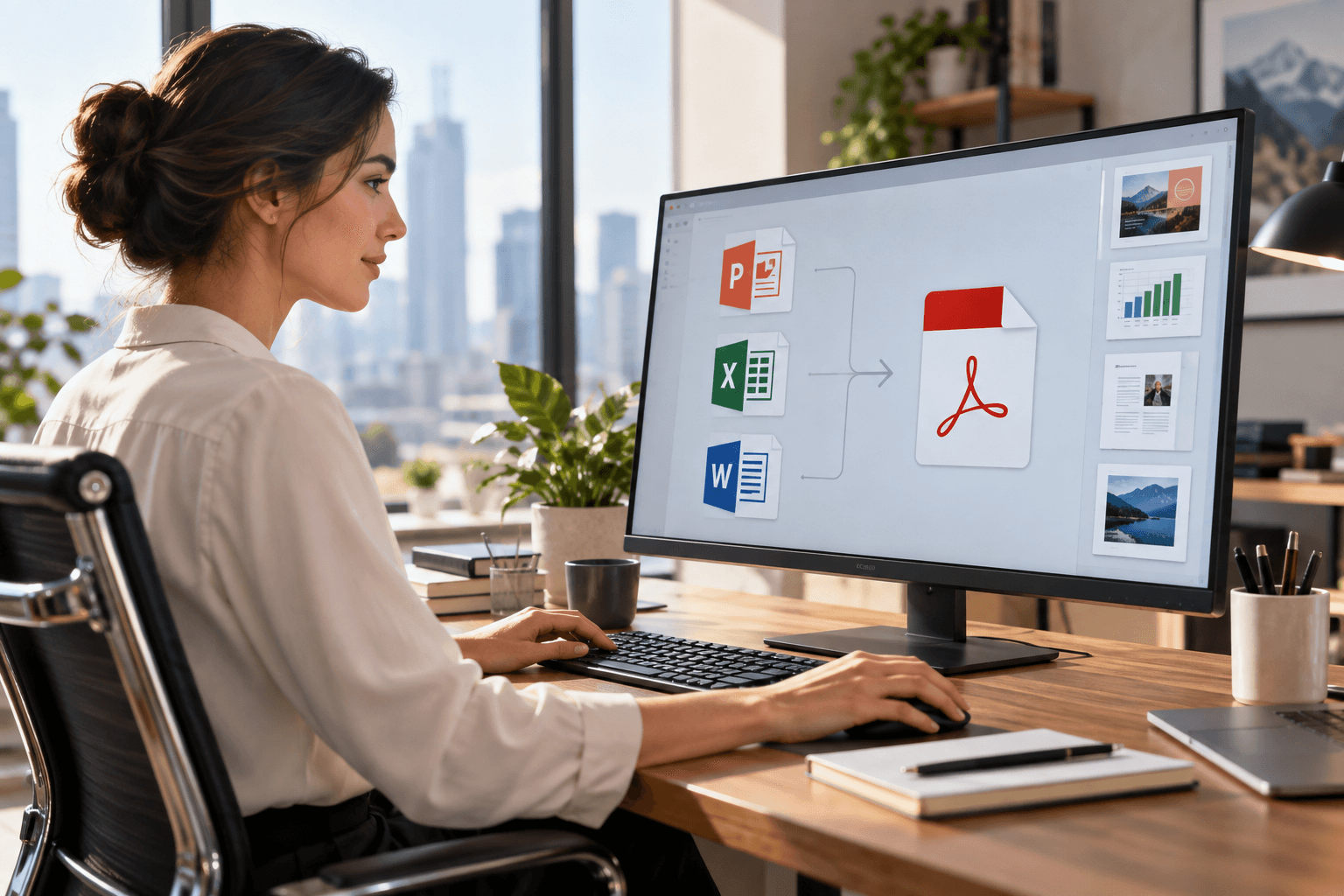
When a contract, form, or archived report is locked inside a PDF, the real challenge is not downloading a DOCX. It is preserving readable text, tables, headings, and the correct reading order. ChuyenFile is designed for that workflow: process a document in the browser, apply OCR to scanned pages when needed, and export an editable Word file.
Quick answer
Use standard conversion when the PDF already contains selectable text. Turn on OCR when each page is an image or text cannot be selected. After conversion, verify names, amounts, dates, multi-column tables, and specialist symbols. Output quality always depends on the source document, so critical files still deserve a human check.
Who is this workflow for?
- Operations teams updating archived forms and procedures.
- Finance teams recovering editable content from quotations and reports.
- Students and researchers making scanned references searchable and annotatable.
- Multilingual teams working with Vietnamese, English, or Chinese documents.
How to convert a PDF to Word
- Open the PDF to Word tool.
- Upload the PDF and decide whether it is a native document or a scan.
- Enable OCR for image-only pages; keep standard mode for selectable text.
- Download the DOCX and compare important sections with the source.
Why conversion errors happen
PDF describes where characters appear on a page; Word describes editable paragraphs, lists, and tables. A file may also use embedded fonts without a reliable Unicode map or contain only pixels. The converter must reconstruct both characters and document structure, which is why clean scans and the correct mode matter.
Improve the result
- Scan straight pages at about 300 DPI with even light.
- Avoid cropped edges, shadows, and patterned backgrounds.
- Remove irrelevant pages first with Split PDF.
- If the goal is analysis rather than page editing, use AI Convert to Excel.
- Always validate financial, legal, or identifying information.
Why use ChuyenFile?
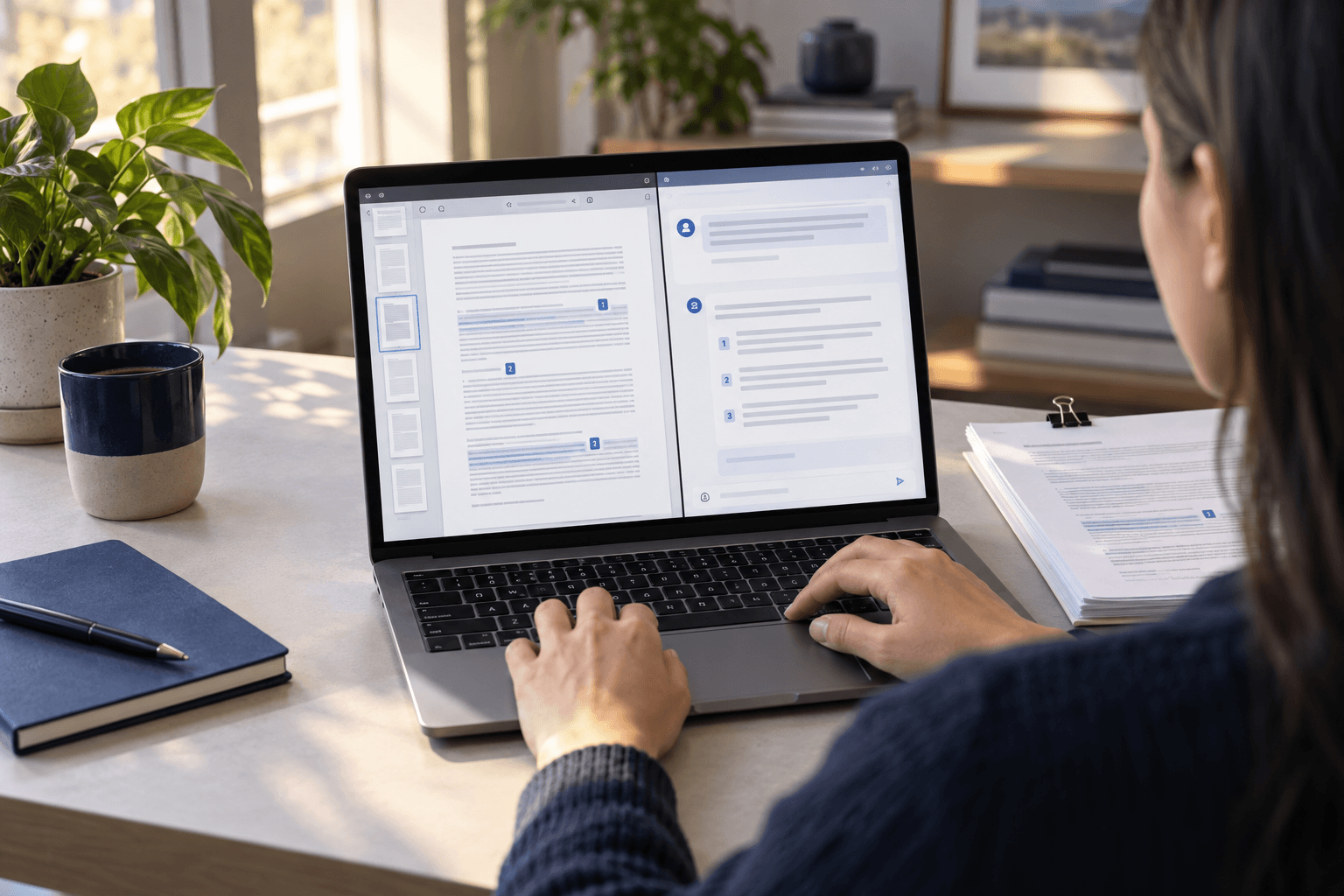
ChuyenFile brings conversion, OCR, compression, page organization, extraction, and document Q&A into one browser-based platform. After converting a file, you can immediately compress it for delivery or inspect a long source with Chat PDF AI.
Bottom line
The best PDF-to-Word workflow begins by identifying whether the source contains text or scanned images. Choose OCR only when it is needed, then validate high-impact fields. ChuyenFile PDF to Word is built for users who need editable documents without installing desktop software.